
We may receive a commission on purchases made from links.
There are several reasons that droves of creators have adopted the Blackmagic Camera app in place of the iPhone’s native camera. For one, it offers options demanded by pros like full manual control, ProRes video capture and scopes for monitoring video. Most importantly though, it’s totally free, unlike rival camera apps from VSCO, Adobe and others.
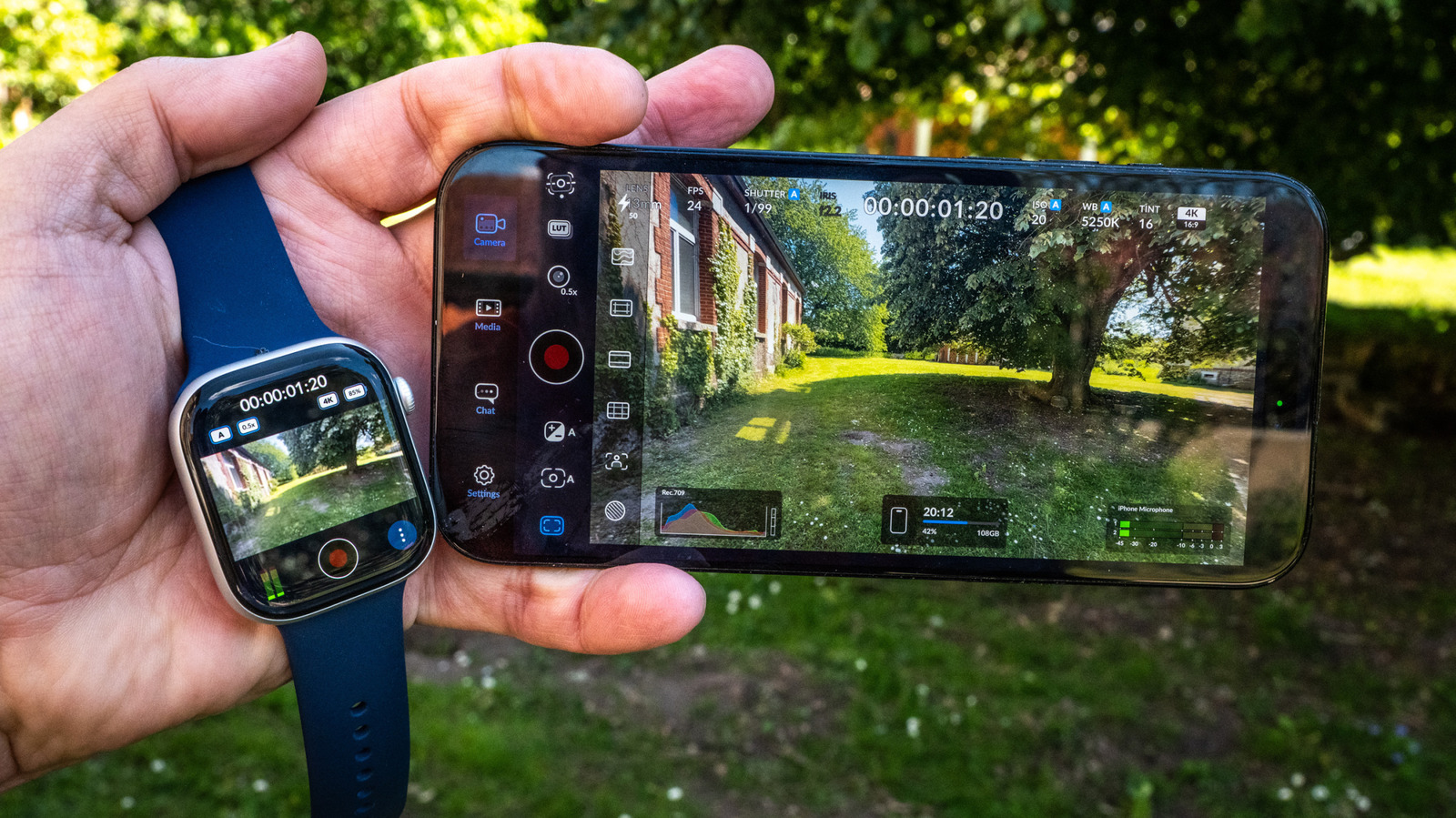
Since iPhone creators don’t usually have a camera crew, Blackmagic Design is offering some help with its latest version 3.3 update. You can now control the app from your wrist thanks to a new Apple Watch app that lets you do things like monitor video, start and stop recording and apply LUTs. To check out the new features, I took a fresh look at Blackmagic’s app, and it’s now incredibly impressive.
Why use the app? The native iPhone camera is powerful enough for most users, but lacks features needed for more creative work. It offers no way to make manual adjustments for shutter speed and white balance, for one, and has limited video format options. Plus, the built-in app lacks scopes, LUTs and other pro-level features.
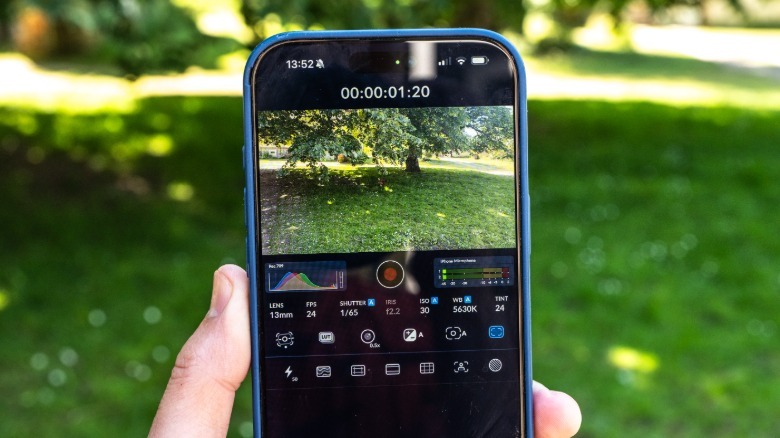
Blackmagic Camera gives you all of those things and more with a simple and elegant interface. The main camera screen lets you choose key settings like shutter, ISO and white balance. Simply tapping on each one lets you change them manually. You can also easily adjust focal length, fps, exposure compensation, autofocus and LUTs (film looks).
 Steve Dent for Engadget
Another key feature is digital stabilization available in three modes: Standard, Cinematic and Extreme. The first two smooth out normal shaking, while the latter corrects extreme shakiness when running, for instance (albeit with a noticeable crop). Note that stabilization is applied to video after it’s recorded, so you won’t see the results during shooting.
You’ll need to dive into another page of settings for things like the video codecs (10-bit ProRes, H.264 or H.265), bitrate, resolution, color space and more. Along with standard 16:9 4K video, the app supports open-gate capture if you want to output both vertical and horizontal video.
It’s possible to shoot ProRes RAW video with Blackmagic Camera on an iPhone 17 Pro or Pro Max, but you’ll need to connect a fast USB-C external SSD like this MagSafe-compatible model. Fortunately, stabilization is now supported for ProRes RAW capture (iOS 26.1 and above), something that was missing in previous versions of the app.
There’s a nice array of scopes for monitoring, including false color, grids, zebras and focus peaking, along with histograms and stereo audio meters. You also get a vertical frame guide that helps when shooting for both vertical and horizontal platforms. “Slate” is another handy feature, letting you note the project name, lens data and other production info.
 Steve Dent for Engadget
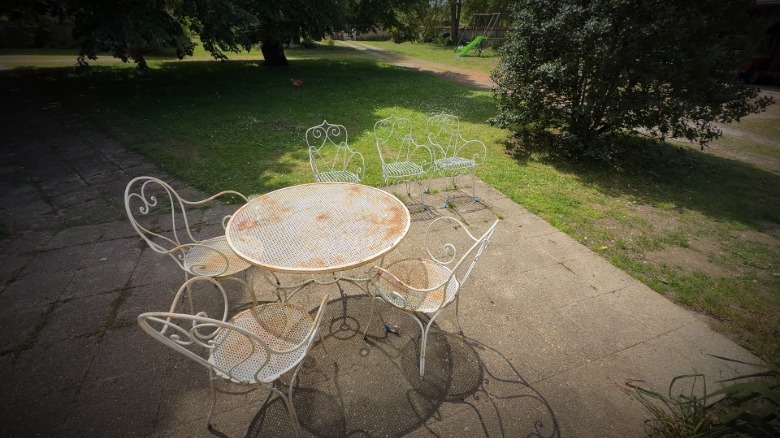
With the latest iOS 26.4 installed on both my iPhone 16 Pro Max and Watch, I put the Blackmagic Camera app through its paces. Video quality is already excellent on that handset, but having granular control over shutter speed and white balance settings let me get creative by controlling motion blur, while creating a filmic “look” using LUTs. The ability to capture 10-bit ProRes 422 log video was very helpful when color grading in post-production.
To test the Apple Watch remote control feature, I installed the Blackmagic Camera 3.3 update and it automatically detected my Watch 10 and installed the companion app. Then, I mounted my iPhone on a tripod and opened the Blackmagic Camera app on both devices.
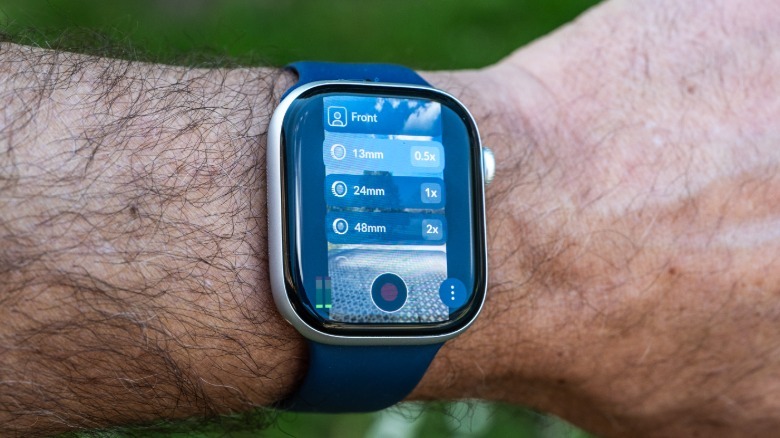
For maximum quality, I used the main iPhone camera rather than the selfie cam. I was able to get a full view of myself right on my wrist, which was nice considering that I couldn’t see the iPhone’s display. The tiny Watch screen doesn’t show a lot of detail, but it’s good enough to use for video selfies or vlogging.
Above the display, the Watch app shows the LUT used, autofocus setting, lens (which can be toggled with the Digital Crown), resolution and battery level. Below, you have audio levels, the record button and additional settings. The latter lets you toggle key functions like autofocus, auto exposure, auto white balance, stabilization and the iPhone’s light.
 Steve Dent for Engadget
With everything set, I was able to trigger recording directly from my Watch. The view is nearly instantaneous, and though it occasionally lagged and froze, a quick tap on the Watch screen woke it up. I’d recommend setting up your Watch so that the screen doesn’t dim too quickly to avoid such lag.
Aside from the Watch feature, Blackmagic Camera 3.3 offers a few other notable functions. One of the best is aimed at live streamers, offering full iPhone 17 Pro or Pro Max control from Blackmagic’s ATEM Mini switcher via the $420 Blackmagic Camera ProDock. You can also manually focus your iPhone using Blackmagic’s Focus and Zoom demand controls and, as mentioned, it now supports stabilization for ProRes RAW on iPhone 17 Pro models.
All of that makes the Blackmagic Camera 3.3 a highly versatile app for iPhone creators, particularly those working alone who need more control and are willing to spend a bit of time learning its features. And as I detailed in my guide to smartphone photography, most third-party iPhone apps require a purchase or subscription, but Blackmagic Camera is completely free.