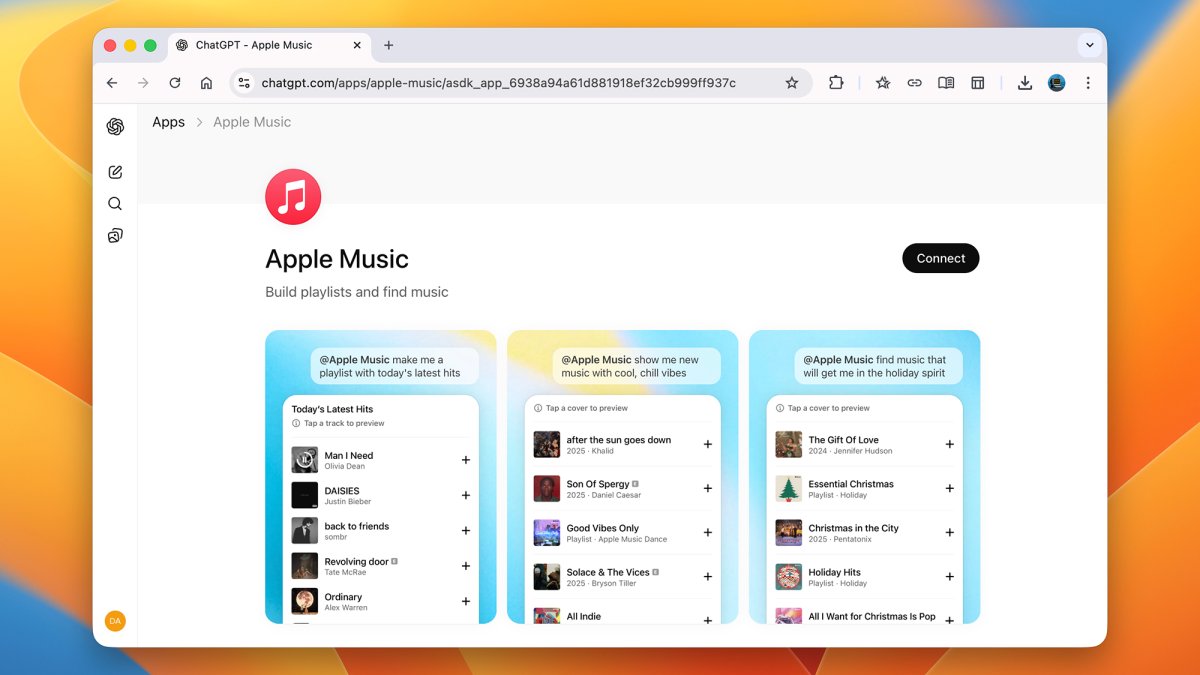

AI apps keep adding new features and functions at a near-constant pace, and the latest upgrade to ChatGPT is support for apps. These apps let you access tools such as Adobe Photoshop and Google Calendar from right inside ChatGPT—so you can use AI prompts to edit images, set schedules, book trips, and much more.
One of these new apps, and one which really showcases how well they can work, is Apple Music. Once you give ChatGPT your Apple Music login credentials, you can use the power of the ChatGPT AI to get fresh ideas for what to listen to, and build playlists around whatever kind of criteria you can describe.
Getting started with Apple Music inside ChatGPT
You can get at ChatGPT’s apps on desktop and mobile, but it’s easiest on the web. Open up the left-hand navigation pane (if it isn’t already open) by clicking on the icon in the top-left corner, then choose Apps. From there you should see all the apps that are currently available, including Apple Music.
While we’re only focusing on Apple Music here, you can click between the app categories to see what else you can plug straight into ChatGPT. Click on any of the apps listed to see details of what the app lets you do inside ChatGPT, and screenshots showing how the various features work. (Remember to consider the privacy and environmental implications of using AI before committing to adding ChatGPT to everything you use.)
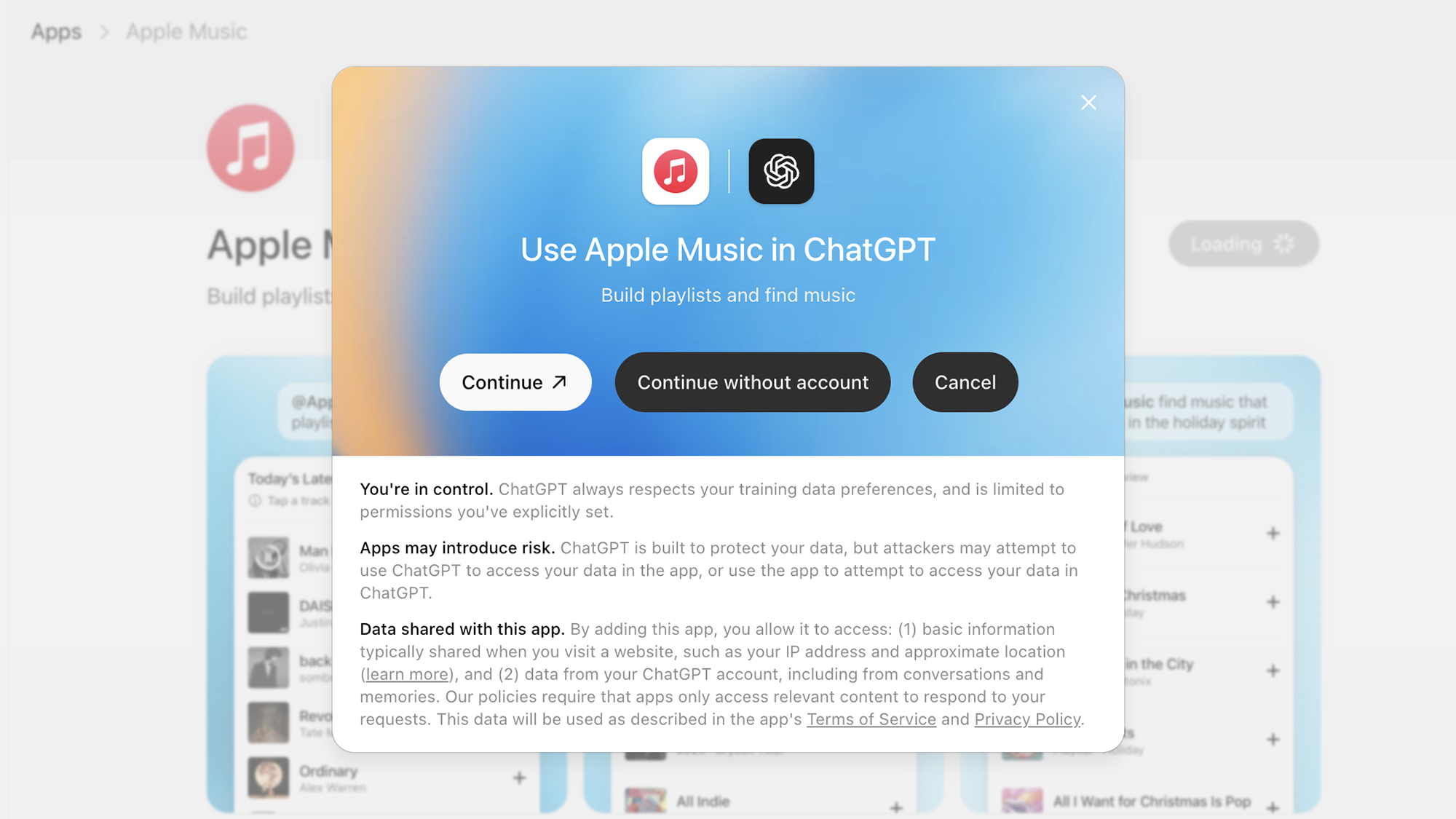
You can find Apple Music under the Featured or Lifestyle tabs, or by searching for it using the search box in the top right corner. When you’ve found it, click Connect. You can then choose Continue to log into your Apple Music account, or Continue without account to play around with the features (though you won’t be able to save any playlists.
If you do connect your account, you’ll need to log into Apple Music on the web, and then choose Continue when the access request appears. If all goes well, you’ll be returned to ChatGPT, and you’ll see a message confirming your accounts have been linked. You can click Start chat to start testing the app out right away.
You can find your installed apps (and remove them, if needed) by clicking your account avatar (bottom left), then choosing Settings and Apps. To use an app in a chat inside ChatGPT, you can @mention it in a prompt, or select it from the + (plus) submenu that appears to the left of the text prompt input box.
What you can do with Apple Music inside ChatGPT
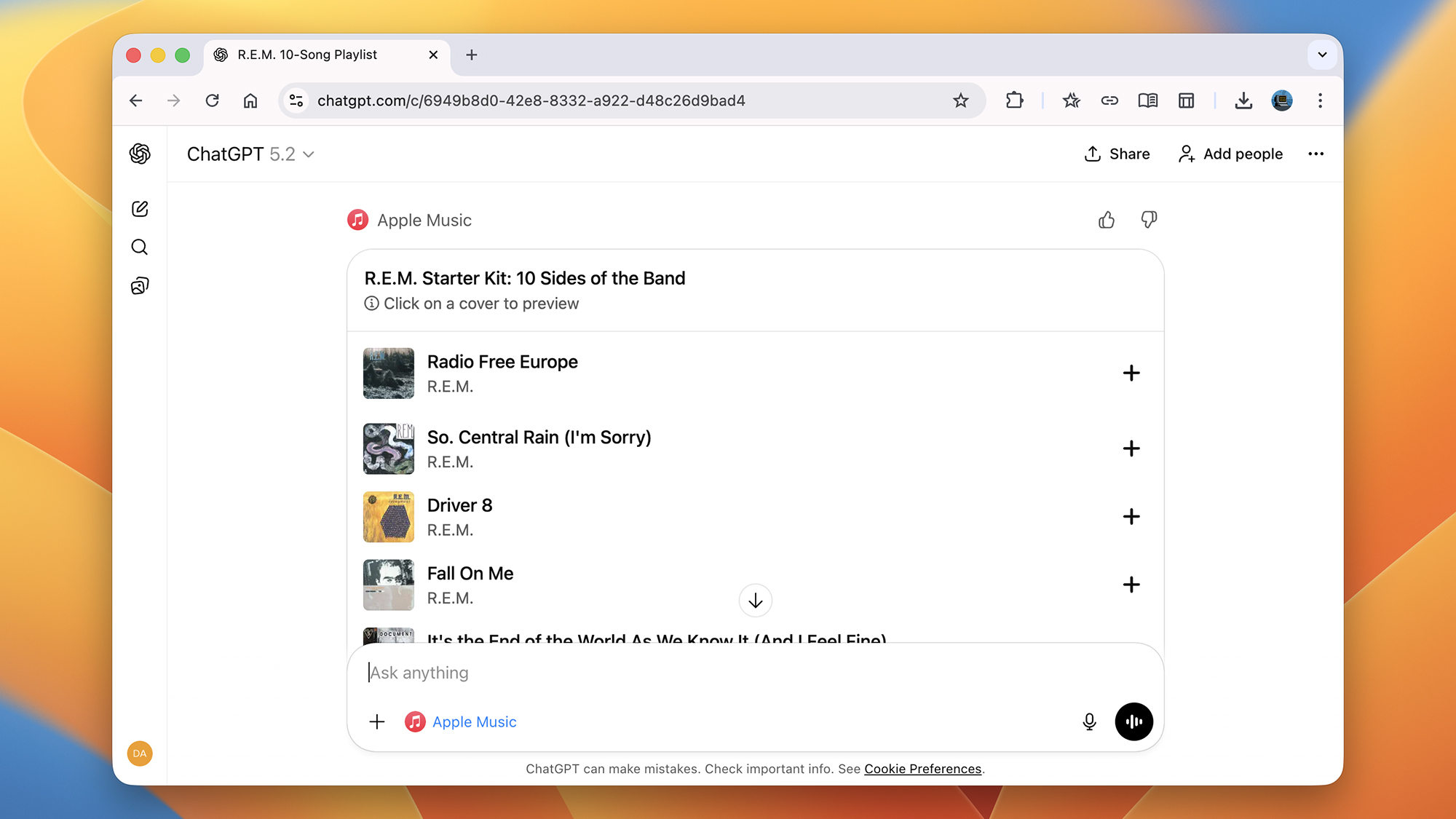
A good way to get started with Apple Music in ChatGPT is to ask for some new music recommendations. This is something you can do with ChatGPT more generally of course, but here you get the benefits of the Apple Music algorithms, and you can save tracks to your account.
Try something like “give me five of the biggest indie rock hits of the last year” or “recommend some songs similar to ‘Running Up That Hill’ by Kate Bush,” and the Apple Music plug-in will oblige. You’ll get a list of songs and a text description underneath, and you can click on any track to hear a preview. You can then ask follow-up questions, or change direction and ask about something else.
The app is useful for exploring music in all kinds of ways. You can ask for the deep cuts for a particular band, for example, or the big singles. Genre and release date information can be included in your prompt as well, and you can tell ChatGPT about your personal preferences to get better answers. What you can’t do (at least not yet) is access your Apple Music library or listening history.
You can also get Apple Music inside ChatGPT to come up with playlists too. If you ask for “a 20-song playlist for an upbeat road trip” or “a 40-song playlist for reflective meditation,” for instance, then you’ll have a relevant list of songs delivered. You can experiment with this in all kinds of ways too, to refine the list of tracks you’re given.
Use any of the + (plus) icons on the right to add individual tracks to your Apple Music library. You can also click Create Playlist in Apple Music to transfer an entire playlist over to Apple Music—though longer playlists may be split up into groups that you need to transfer separately. Next time you open up the Apple Music app, you’ll find the tracks you added from ChatGPT.

2025 PopSci Best of What’s New