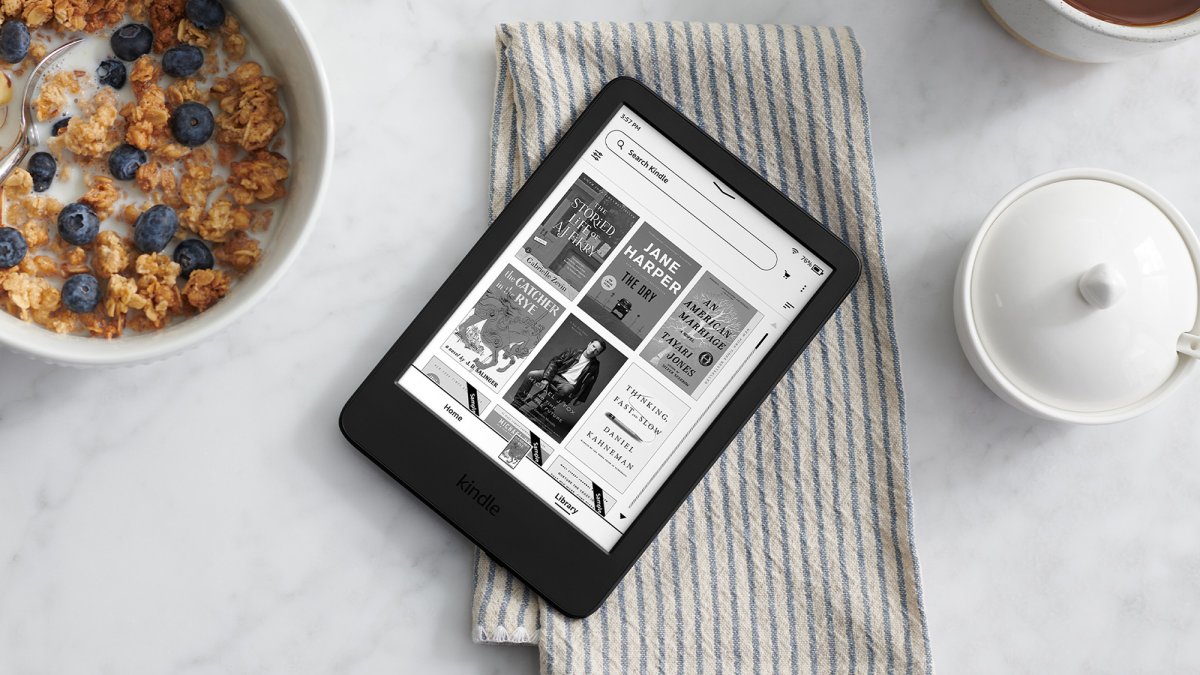

All of the Amazon Kindle models are intentionally designed to be straightforward to use. Grab your Kindle, tap the power button, and you’re back reading from the place you left off (it’s almost as simple as opening a real book).
However, this ease-of-use doesn’t mean there aren’t settings to consider changing. The tweaks can give you a reading experience that’s more personalized, enjoyable, and useful. These seven settings in particular can help you get more out of your Kindle.
1. Redefine reading progress
By default, in the lower left corner of your Kindle screen you get your in-book location when you’re reading something (it’s the Kindle version of page numbers, basically). However, it’s not all that helpful—and there are better ways to use this strip of space.
Just tap on the lower left corner where the location is shown to switch to something else, like the time it’s going to take you to finish the chapter or the entire e-book (which is handy for planning reading breaks). You can even turn off this info bar entirely.
2. Feel the warmth
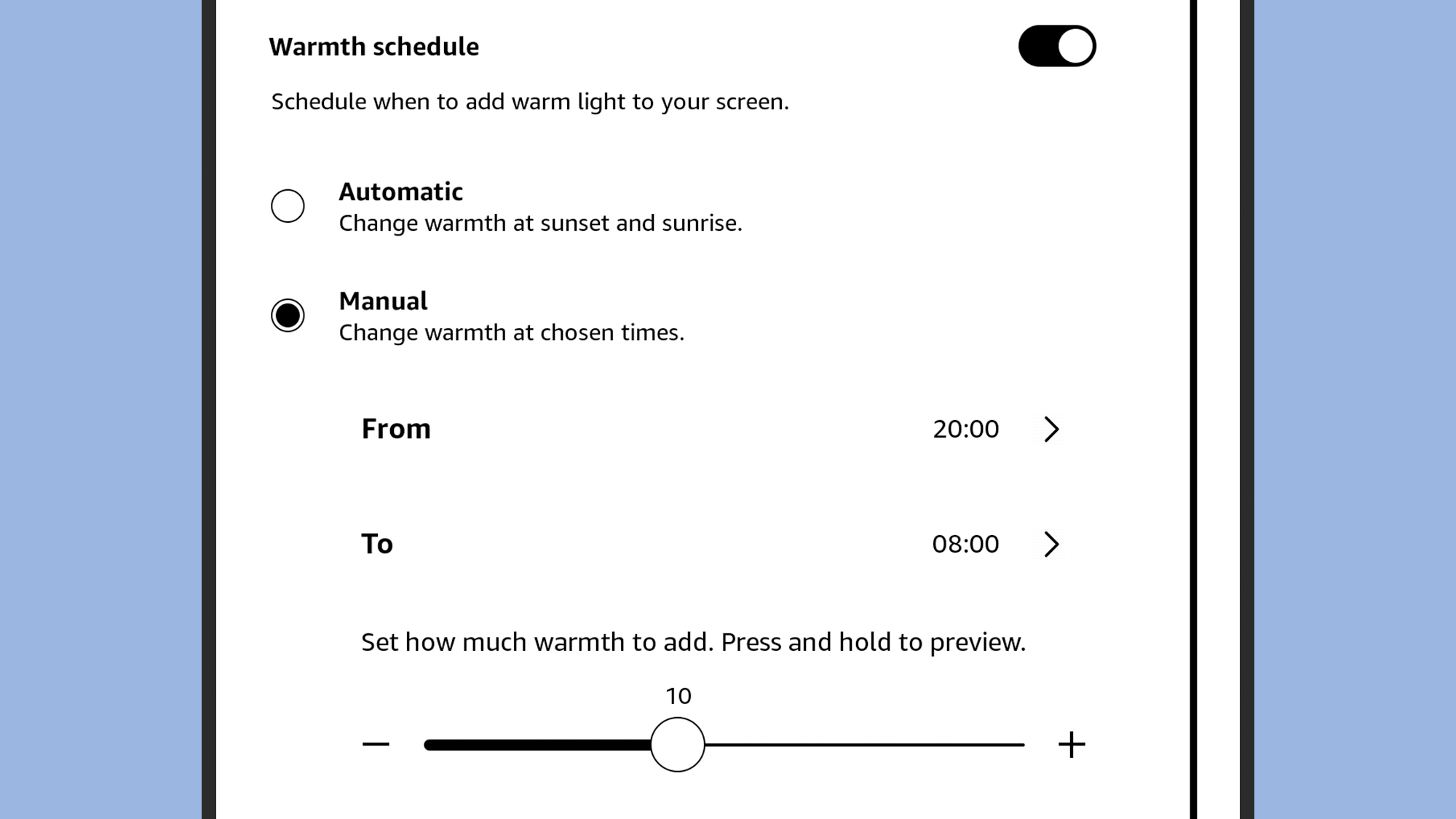
Certain Kindles—specifically the Oasis, the Colorsoft, and the Paperwhite—let you adjust screen warmth as well as brightness. This controls the blue light being emitted from the e-reader display, so at night you can ramp up the orange-y tint and give your eyes a rest.
To find screen warmth from the library screen, tap the three dots (top right), then choose Settings > Screen and brightness > Brightness and warmth. You can even activate the Warmth schedule option, to have this setting change automatically based on the time.
3. Change the layout
Getting the Kindle page layout set up just so can make a real difference to your reading experience and reading speed—experiment to see which configuration works best for you, in terms of your eyes scanning across the screen and moving up and down each page.
To get to these settings from within an e-book, tap near the top of the screen and then tap on the Aa icon. Select Themes to change the spacing between lines, Layout to adjust the margins and the alignment, and Font to make changes to the size and style of the text.
4. Add a PIN code
It’s not difficult to pick up someone else’s Kindle and start reading—all it takes is a push of the power button. But you don’t necessarily want it to be that easy, especially if you’ve got inquisitive kids or a partner with exactly the same Kindle e-reader model as you.
Adding a PIN code to the lock screen means that your reading stays private and free from any interference, deliberate or otherwise. From the library screen, tap the three dots (top right), then choose Settings > Device options > Privacy and security > Device PIN.
5. See the covers
If you’ve got a Kindle without ads, you’ll see generic art by default when your e-reader is locked. You can opt to show book covers instead. From the library screen, tap the three dots (top right), and Settings > Screen and brightness > Show covers on lock screen.
This makes your reading experience a little more personalized, reminds you what you’re currently reading, and reduces the feeling of same-yness you might get when reading e-books. If you’ve got a Kindle Colorsoft, then the cover artwork is even more interesting.
6. Disable the touchscreen
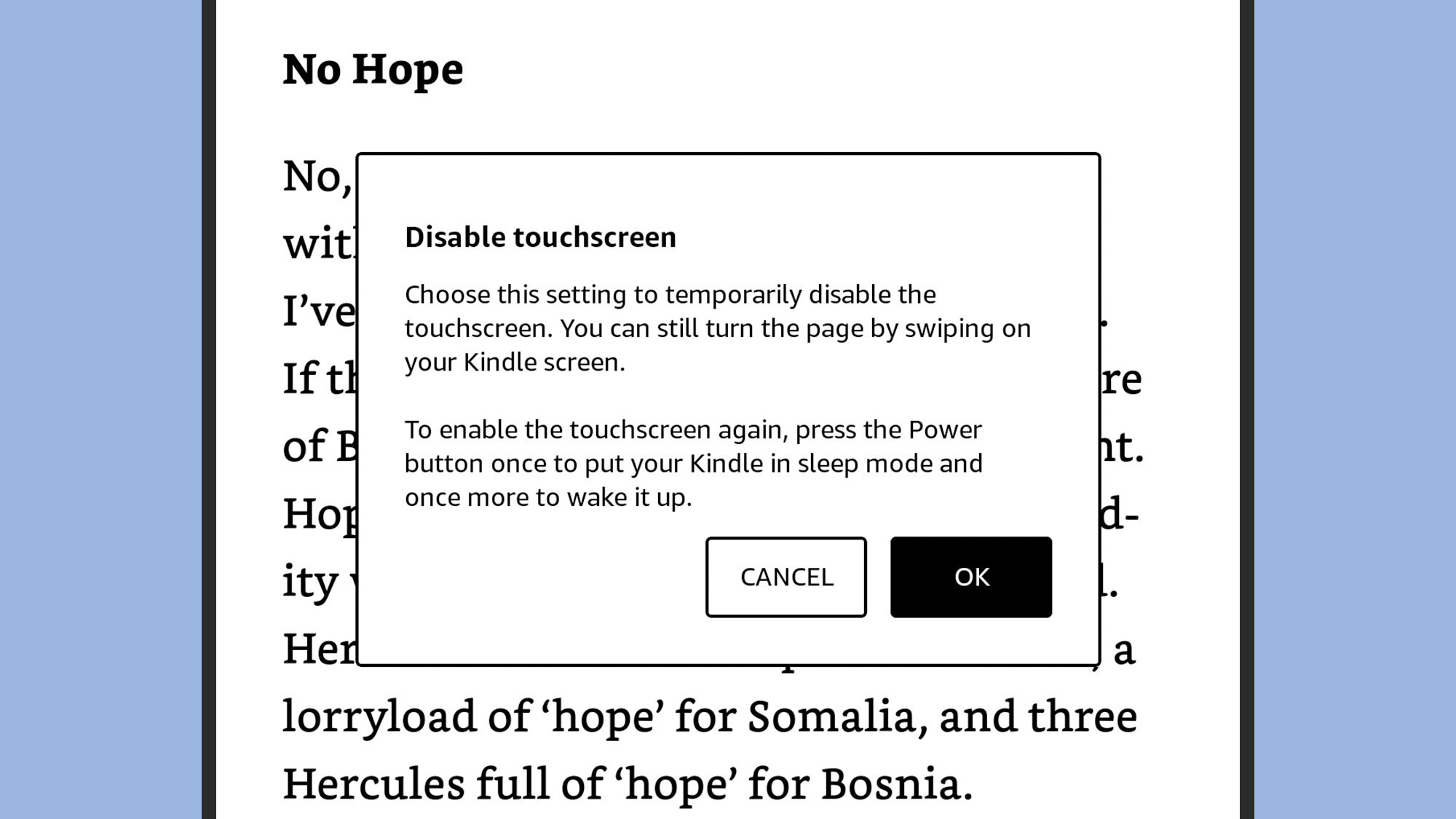
This sounds counter-intuitive, but disabling the touchscreen on some Kindles (including those with buttons and newer Paperwhites) can give you a better reading experience, because you won’t inadvertently turn a page or open a menu when you didn’t mean to.
With an e-book open, tap near the top of the screen, then tap the three dots and Disable Touchscreen. You can still turn pages with a swipe on the screen, or via the physical buttons. To enable the touchscreen again, put your Kindle to sleep and wake it back up.
7. Hide the highlights
Kindles have a feature called Popular Highlights, which marks out passages in the e-book you’re reading that are commonly highlighted by other readers. It’s like a greatest hits collection, for blocks of text—the bits of a book that resonate with the most people.
Fine if you want to be told which bits are the best bits, but many readers will want to make their own minds up, and not have the on-screen distraction. To disable Popular Highlights, tap near the top of the screen in an e-book, then choose Aa > More > Popular Highlights.

2025 PopSci Best of What’s New